My Bookings
1. Menu path
All booking history on PantosNow can be checked in My Bookings, where you can also track the progress. Additionally, all tasks such as edit, cancellation can be made.

① My Bookings Tab: Bookings are categorized into different sections (All / Temporarily Saved / Booking Requested / Booking Confirmed / Booking Canceled).
② Booking Number: The platform-specific booking number is displayed. (If you specified a Reference No when entering booking information, it can also be displayed as the unique Reference No.)
③ Booking Confirmation Number & Cut-off Dates: Once the booking is confirmed, the carrier booking number (airline Master number), B/L No, document cut-off date, and cargo cut-off date will be updated.
④ Additional Features:
Cancel: Cancel the booking
Copy: Rebook using the same booking history
Document: Attach/send shipping documents and booking-related documents, and check the cut-off documents and B/L information
Track: Check the detailed location of the cargo after it is onboard
1:1 Messaging: Receive one-on-one consultation regarding the booking
⑤ Booking Information and Milestone: Check booking information (POL/POD) and the progress at each stage
2. Booking Details
Click the booking to view, edit, and perform additional tasks on the booking details.

① Select the Booking
② Collapse Booking Details View: Click to close the detailed booking view window.
③ Additional Features:
Copy this Booking: Create a new booking with the same details by using the copy function.
Edit Booking: If there are any changes needed for the requested booking, edit the details and share them with the LX Pantos representative. (Note: Editing may not be possible after the cargo is onboarded.)
Cancel Booking: Cancel the booking.
1:1 Inquiry: Receive one-on-one consultation.
Expand Booking Details View: Enlarge the detailed booking view window.
④ Detailed Booking Information: Check and edit the detailed booking information.
2-1. Cargo Details
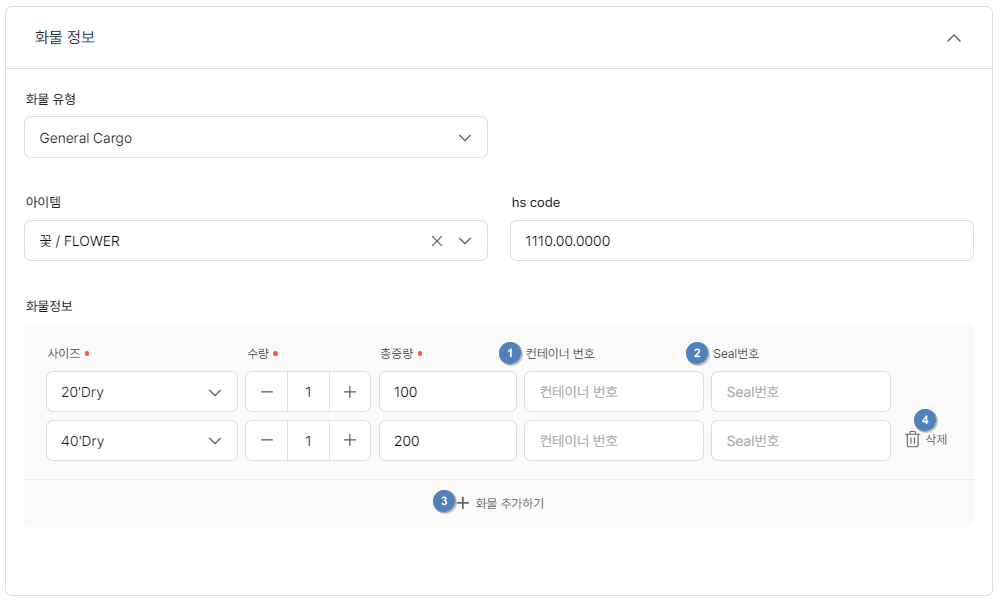
① Enter Container Number: Input the completed container number. (Skip if requested through LX Pantos)
② Enter Seal Number
③ Add Container: If additional containers are needed, click Add Cargo.
④ Delete Container: Remove the added container.
2-2. B/L Issuance Type & Issue B/L

① Select BL Type: Choose the type of Bill of Lading (e.g., Check, Draft, Original, Seaway, Surrendered).
② Select BL Recipient: If a physical BL receipt is required, enter the recipient's address.
③ Select & Save Address Book: Retrieve an address from the address book or save a new address to the address book.
④ Final B/L Issuance Request: Once the Check B/L is confirmed and all B/L related tasks are completed, issue the Bill of Lading.
2-3. Document Upload & Download

① Attach and Download Shipping Documents: Attach and download shipping documents (e.g., CIPL and export declaration).
② Download Booking Sheet: Download the 'Booking Sheet' issued by LX Pantos.
③ Edit and Download Check B/L: Modify and download the Check B/L.
2-4. Edit Check B/L
You no longer need to edit the Check B/L via email or fax. Edit it in real-time on the platform.
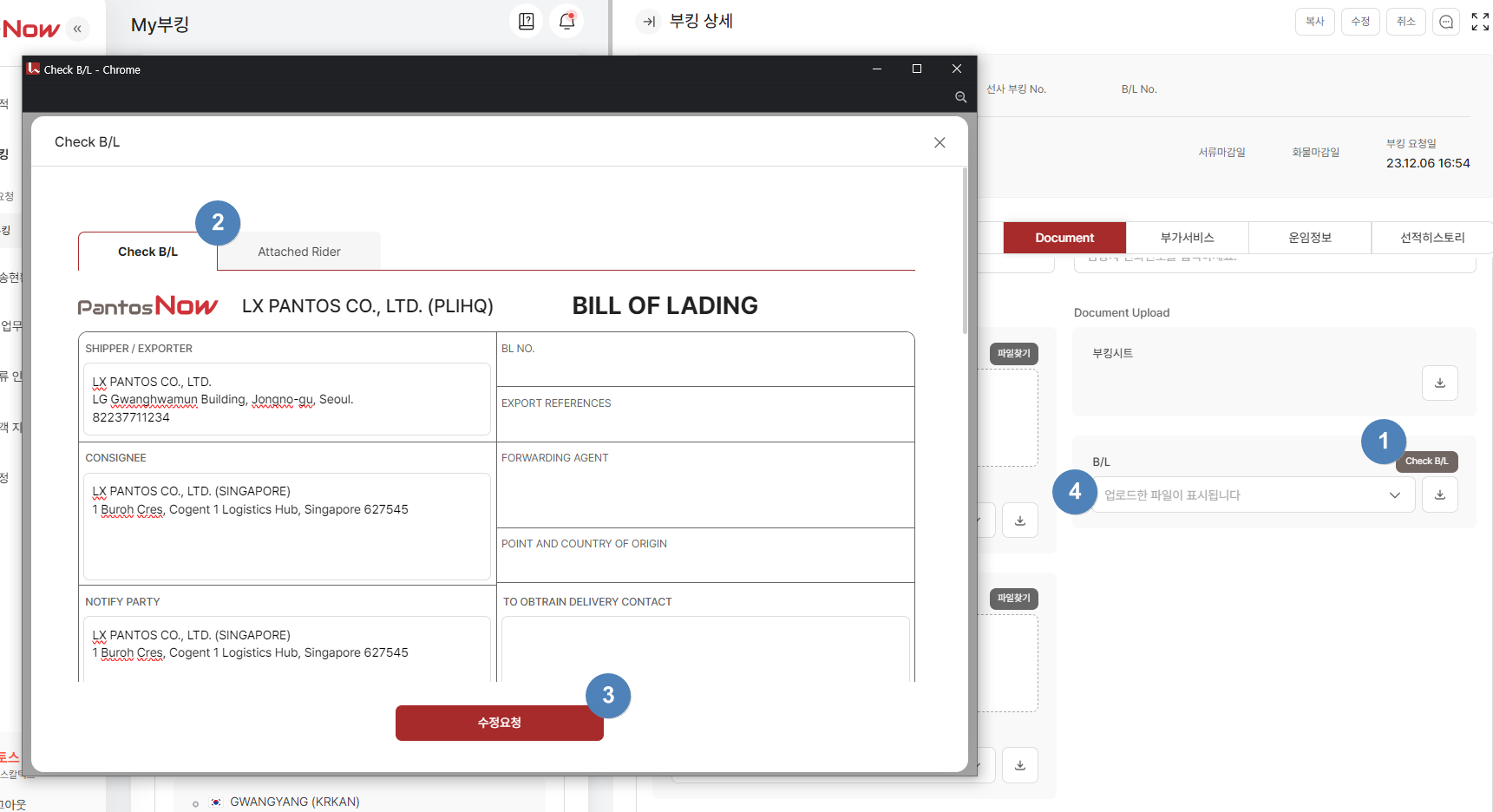
① Review Check B/L: Confirm the Check B/L issued by the LX Pantos representative.
② Edit Information: If there are any details that need to be edited or added, make the changes directly.
③ Submit Edits: Once you have completed the edits or additions, submit the changes.
④ Verify and Download: Check the edited and updated records, and download if needed.
Last updated